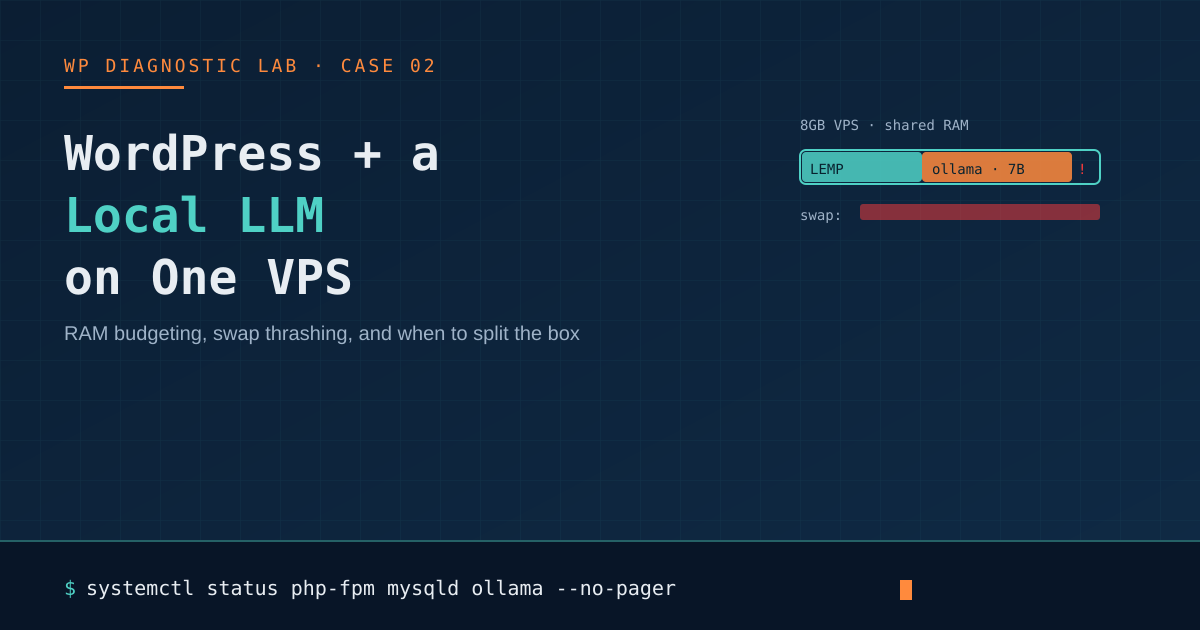
Self-hosting a small language model alongside WordPress is an appealing idea: one server, one bill, full data privacy, and an AI chatbot or content assistant that never sends a single request to a third party. Plenty of guides will tell you how to install Ollama on a VPS, and plenty of others will tell you the minimum specs for running WordPress. Almost none of them tell you what happens when you try to do both on the same box — and that’s the part that actually determines whether the idea works.
Short version: it can work, but only if you understand exactly where the two workloads compete for the same resources, and you configure around it deliberately rather than hoping for the best.
Why this combination is harder than either workload alone
WordPress’s resource footprint is modest and mostly idle: PHP-FPM workers, a MySQL/MariaDB process, and whatever caching layer you run, all sized for quick request-response cycles measured in milliseconds. A local LLM’s footprint is the opposite shape: it needs its entire model — every weight — loaded into RAM the moment it’s active, and inference is a sustained, CPU-heavy burst that can run for several seconds per response.
Put those two profiles on the same machine and you get a fight over two specific resources:
RAM. WordPress’s LEMP/LAMP stack typically holds somewhere between 300MB and 800MB at idle, more under real traffic with object caching. A quantized 7B-parameter model needs roughly 4-6GB just to sit in memory, before you’ve generated a single token. On an 8GB VPS, that leaves very little headroom for MySQL’s buffer pool or PHP’s opcode cache — and if either gets starved, WordPress pages start failing, not just slowing down.
CPU. Unless you’re paying for a GPU instance, LLM inference runs on the CPU and will happily consume every core you give it for the duration of a generation. If a visitor loads a WordPress page at the exact moment your chatbot is mid-response, PHP-FPM requests queue behind the inference process, and you’ll see 502 or 504 errors that have nothing to do with WordPress itself.
A rough RAM budget by VPS size
| VPS RAM | What actually fits | Realistic outcome |
|---|---|---|
| 2GB | WordPress only, or a 1-3B model with WordPress idle | Combining both reliably causes OOM kills under any real traffic |
| 4GB | WordPress + a 1.5-3B quantized model, light traffic only | Workable for personal projects and testing, not production traffic |
| 8GB | WordPress + a 7-8B quantized model, moderate traffic | The realistic sweet spot for a small site with an occasional AI feature |
| 16GB+ | WordPress + a 7-14B model, or bigger context windows | Comfortable headroom; still worth isolating processes (see below) |
These numbers assume a single WooCommerce-free WordPress install with normal caching. A busy WooCommerce store or a site with many concurrent editors needs meaningfully more headroom before you even add a model into the mix.
The symptoms of resource contention (so you know it when you see it)
- The WordPress admin or frontend becomes noticeably slow specifically while the AI feature is generating a response, then returns to normal afterward.
- MySQL gets killed by the Linux OOM killer during traffic spikes that coincide with AI usage — check
dmesgor/var/log/syslogforOut of memory: Killed processentries namingmysqld. - PHP-FPM logs show
504 Gateway Timeouterrors clustering around the same timestamps as chatbot activity in your Ollama logs. free -hshows swap usage climbing steadily rather than staying near zero — a sign you’ve committed more memory than the box physically has, and the kernel is now trading speed for survival.
Practical mitigations, from easiest to most involved
1. Set a hard memory ceiling on the LLM process
Run Ollama (or whichever inference server you use) under a systemd unit with MemoryMax set explicitly, so a large or unexpected request can’t balloon into starving MySQL:
[Service]
MemoryMax=4G
CPUQuota=70%
This trades a hard failure for the inference process (it’ll get OOM-killed itself, not WordPress) for protection of the rest of the stack — which is almost always the right trade on a shared box.
2. Tune the model’s keep-alive behavior
By default, tools like Ollama keep a model resident in RAM for a few minutes after the last request “just in case.” On a shared VPS, that’s exactly the window where WordPress needs that memory back. Lowering the keep-alive value (or setting it to unload immediately) frees RAM faster, at the cost of a slower first response the next time someone uses the AI feature — usually a good trade for a low-traffic feature.
3. Move generation off the live request thread
Instead of having a visitor’s page load block on an LLM response, queue the request (via wp_cron or a proper job queue like Action Scheduler) and poll for the result client-side. This decouples “a visitor is on the site” from “the CPU is doing inference,” so PHP-FPM workers are never sitting idle waiting on a multi-second generation.
4. Give PHP-FPM its own protected pool
Configure a dedicated PHP-FPM pool with pm.max_children sized conservatively, and use nice/ionice to keep the inference process from starving it under Linux’s default scheduler. This won’t eliminate contention, but it changes who loses the fight — you almost always want WordPress’s requests to win over a background AI task.
5. Add swap, but treat it as a safety net, not a plan
A modest swap file (equal to your RAM, or half of it on NVMe-backed VPS storage) turns a hard crash into a graceful slowdown when you briefly exceed physical RAM. It should never be your primary strategy — swapping model weights is drastically slower than keeping them in RAM — but it buys you time to notice and fix a sizing problem instead of losing the site outright.
6. Know when to just split the box
If your AI feature gets real usage — not an occasional demo, but regular visitor interaction — the honest answer is often to move the LLM to its own VPS and have WordPress call it over a private network connection. You lose the “one bill, one box” simplicity, but you gain predictable performance on both sides, and debugging becomes far easier when the two workloads aren’t fighting over the same free -h output.
A simple decision framework
- Personal blog, occasional AI writing assistant used only by you in wp-admin: combining on one 8GB+ VPS is fine.
- Public-facing chatbot with real visitor traffic: budget for separate infrastructure, or accept that peak traffic and peak AI usage can’t both be guaranteed fast.
- WooCommerce store of any real size: don’t combine them. The RAM and CPU margins WooCommerce needs during checkout are not ones you want to gamble against an LLM’s memory footprint.
The takeaway
Running WordPress and a local LLM on the same VPS isn’t a bad idea — it’s just a resource-management problem that most guides skip because they only test one workload at a time. Set explicit memory limits, decouple inference from the live request path, and monitor dmesg for OOM kills during your first week of real usage. If you do those three things, “one box” can genuinely work for small to medium use cases — you just have to configure it like you mean it, not like a tutorial that only tested it standing alone.