If you manage a WordPress site with more than a couple of active plugins, you’ve probably run into this: a block that worked fine yesterday suddenly stops responding to clicks, an accordion won’t open, a cart count won’t update — and your browser console is throwing errors that mention wp-interactive or a script module namespace you don’t recognize.
Since WordPress 6.5 introduced the Interactivity API, a growing number of blocks and plugins use it to add frontend behavior without loading React or jQuery. That’s good news for performance. It’s less good news for troubleshooting, because when two plugins both hook into the same interactivity layer, the failures don’t look like typical PHP fatal errors — they look like silent, half-working JavaScript, and most existing WordPress debugging guides don’t cover this case yet.
This post walks through exactly how to isolate and fix these conflicts.
What the Interactivity API actually does (in one paragraph)
The Interactivity API lets a block attach behavior to markup using data-wp-* directives (data-wp-interactive, data-wp-on--click, data-wp-bind--value, and so on) instead of custom JavaScript. Each interactive region declares a namespace — a string that ties its markup to a JavaScript “store” registered via the @wordpress/interactivity module. WordPress core ships this module bundled, and any plugin can register its own store under its own namespace. That’s the whole system in a nutshell — and it’s also exactly where conflicts start.
The symptoms that point to an Interactivity API conflict
Before you go plugin-hunting, confirm you’re actually looking at this kind of conflict rather than a generic JS error. Look for:
- A block’s interactivity (toggle, counter, filter, add-to-cart) works in isolation on a blank page but breaks once a second plugin’s block is added to the same page.
- Browser console errors referencing
store,state,directive, or a specific namespace string likemyplugin/cart. - With
WP_DEBUGenabled, the admin dashboard or frontend source floods with warnings pointing at@wordpress/interactivity— sometimes hundreds of nearly identical lines. - The issue disappears when you disable one specific plugin, but there’s no PHP error anywhere to explain why.
- Source maps in dev tools point to a script that “should” be compiled but appears as raw, unminified code mixed with minified output.
If two or more of these match, keep reading.
Common root causes, ranked by how often they actually happen
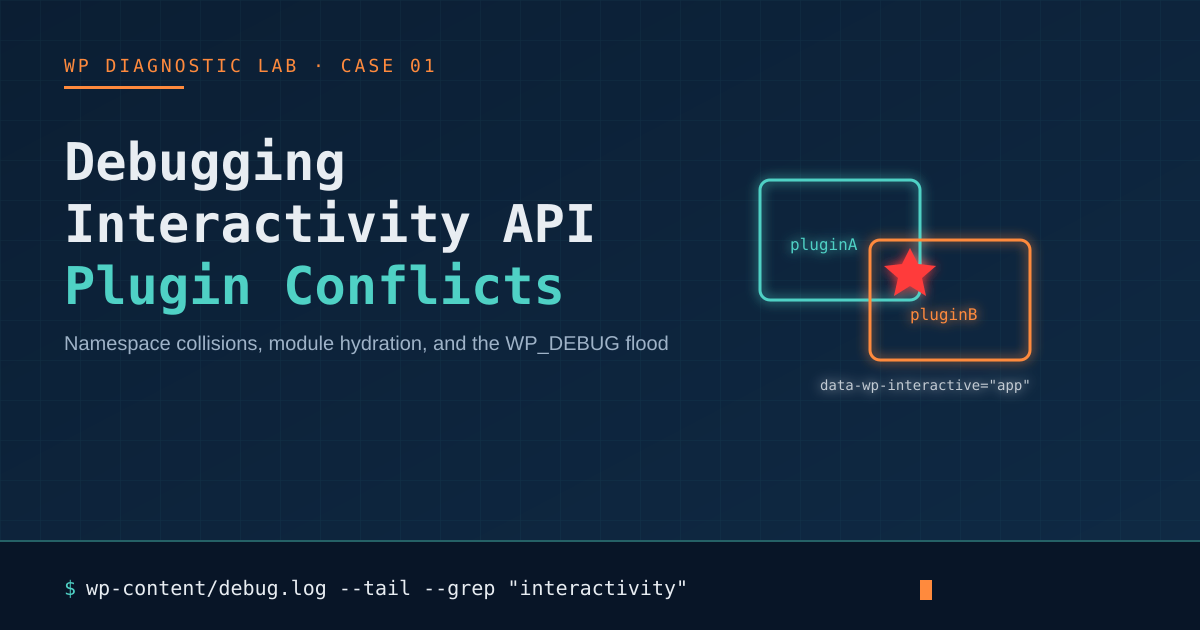
1. Namespace collisions. Two plugins (or a plugin and a theme) register a store under the same or a colliding namespace string — most often because both used a generic name like store or copied a tutorial’s example namespace verbatim instead of using their own plugin slug.
2. Duplicate module loading. A plugin bundles its own copy of @wordpress/interactivity instead of relying on the one WordPress core already loads. When both versions load on the same page, directives can attach to the wrong instance of the store, causing state updates that silently go nowhere.
3. Caching and minification plugins mangling script modules. Interactivity API scripts are loaded as native ES modules (type="module"), which behave differently under combination and minification than classic scripts. Some caching plugins concatenate or defer these incorrectly, breaking module registration order.
4. Uncompiled or legacy JavaScript sharing the page. A plugin that predates the Interactivity API and injects raw, unminified inline scripts can trip source-map warnings and, in some cases, interfere with how the browser parses adjacent module scripts — this is a documented complaint on the WordPress.org support forums, where one SEO plugin was flagged for flooding the admin with WP_DEBUG notices that pointed at Interactivity API internals even though the plugin itself doesn’t use the API.
5. Missing viewScriptModule dependency declarations. If a custom block’s block.json doesn’t correctly declare its dependency on @wordpress/interactivity, load order becomes unpredictable — it can work most of the time and fail only when a specific combination of other plugins changes the enqueue order.
Step-by-step diagnostic process
Step 1 — Isolate with a clean baseline
Install the Health Check & Troubleshooting plugin (or your host’s equivalent staging tool) so you can disable all plugins and switch to a default theme like Twenty Twenty-Five without affecting logged-out visitors. Confirm the broken interaction works correctly in this clean state. If it doesn’t, the problem is in the block itself, not a conflict — stop here and check the block’s own settings first.
Step 2 — Reintroduce plugins one at a time
Re-enable plugins in small batches, reloading the affected page after each one, until the interaction breaks again. This narrows the suspect list to two or three plugins instead of twenty.
Step 3 — Read the console error for the namespace, not just the message
Open dev tools and look specifically for the string passed to data-wp-interactive. Compare it across your suspect plugins by viewing page source and searching for data-wp-interactive=. If two different plugins use the identical string, you’ve found a namespace collision — the fix is usually a support ticket to whichever plugin used the less-specific name, since namespaces should always be the plugin’s own slug.
Step 4 — Check for duplicate module registration
In the Network tab, filter for .js and look for two requests loading files with interactivity in the path, or two different @wordpress/interactivity version query strings. If you find both, one plugin is bundling its own copy instead of using core’s. This is a common and fixable pattern — the plugin author needs to declare wp-interactivity as an external dependency instead of bundling it.
Step 5 — Temporarily disable caching/minification
Exclude type="module" scripts from your caching plugin’s JS optimization, or disable JS combination entirely, then retest. If the problem disappears, you’ve confirmed a build/optimization conflict rather than a plugin code conflict — you can usually solve this permanently by adding an exclusion rule for interactivity-related script handles in your caching plugin’s settings.
Step 6 — Check debug.log for repeated warnings
With WP_DEBUG and WP_DEBUG_LOG enabled, tail wp-content/debug.log while reproducing the issue. A wall of repeated, near-identical warnings pointing to the same file is a strong signal that a script is being re-parsed or re-registered on every request — usually a caching or minification issue rather than a one-time PHP bug.
A fix checklist you can hand to a developer
- Confirm each interactive block uses a namespace matching its own plugin/theme slug — never a generic name.
- Confirm no plugin bundles its own copy of
@wordpress/interactivity; it should be declared as an external dependency on WordPress core’s copy. - Exclude
type="module"script tags from JS combination/minification in your caching plugin. - Verify
block.jsoncorrectly lists@wordpress/interactivityinviewScriptModuledependencies. - Test on a default theme and default plugin set before assuming the bug is in your custom code.
- If a legacy plugin injects raw inline scripts on the same page, check whether disabling
WP_DEBUGdisplay (while keeping logging) removes cosmetic console noise that was never actually breaking functionality.
When to escalate
If you’ve isolated the conflict to two specific plugins and confirmed a namespace or module-loading issue, report it on the plugin’s WordPress.org support forum with the exact namespace strings and console errors you found — this is specific enough information that most maintainers can fix it quickly. If the issue is with WordPress core’s own Interactivity API behavior, the Gutenberg GitHub repository is the right place, since core development happens there before merging into WordPress releases.
The bigger picture
The Interactivity API is still young, and most caching plugins, page builders, and JS-heavy plugins haven’t fully caught up to it yet. Conflicts like these will get rarer as more of the ecosystem adopts standard patterns — but until then, a systematic isolation process is faster than guessing, and it’s the same process whether the next conflict involves a cart counter, a search filter, or a mega menu.
Working on a staging copy of your site before touching plugin code is always worth the extra five minutes it takes to set up.