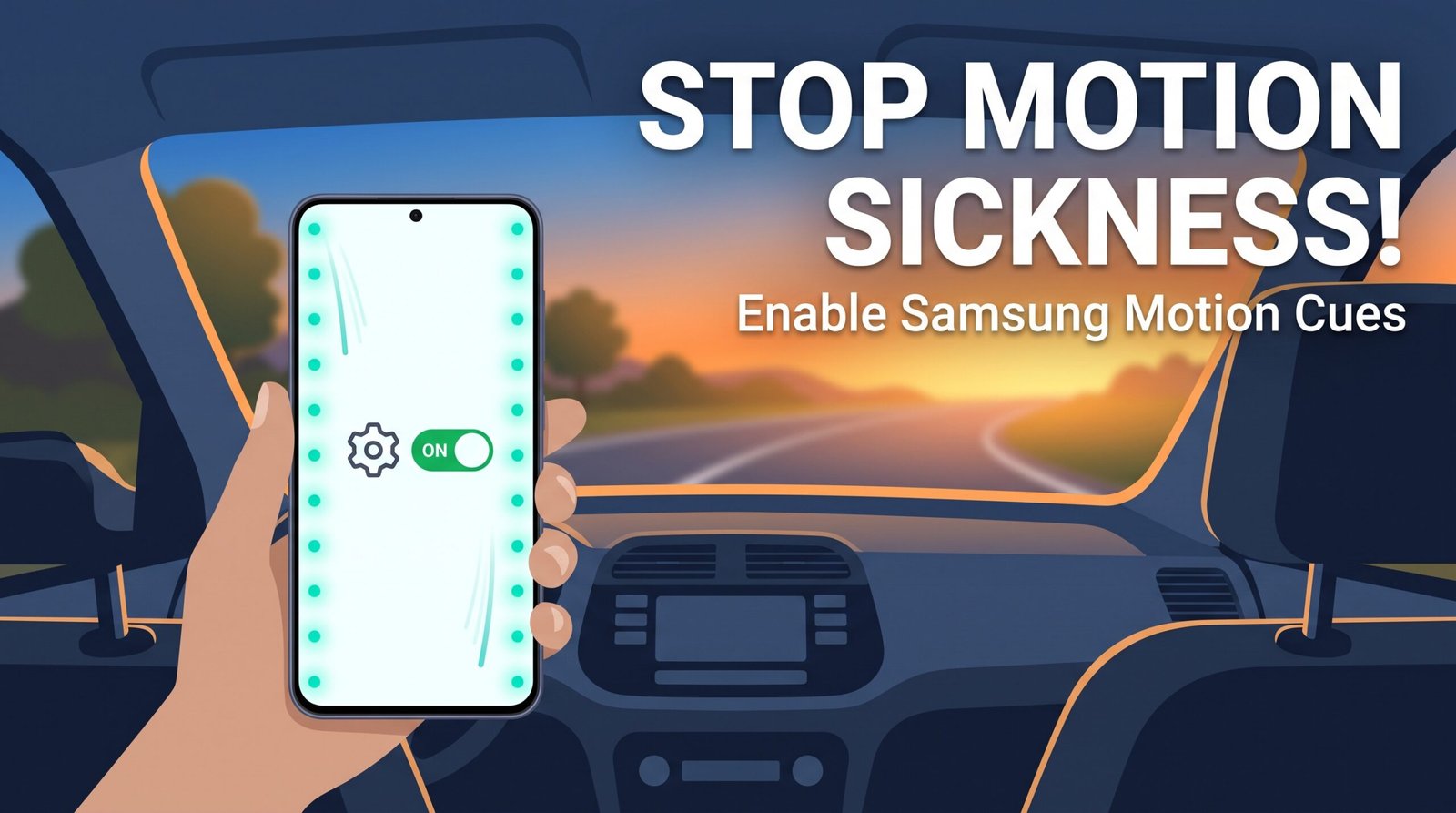
Do you feel dizzy or a bit sick when you look at your phone while riding in a car, bus, or train? You are not alone. This happens because your eyes see a still phone screen, but your body feels the car moving. Your brain gets confused, and that confusion can make you feel sick. If you’ve been searching for a samsung car sickness mode or wondering, “is there a motion sickness setting on Samsung?” — the answer is yes, and this guide will walk you through it.
The good news is that newer Samsung Galaxy phones have a helpful feature for this. It is called Motion Cues, and it works as a built-in motion sickness mode Samsung users can turn on in just a few taps. It shows small moving dots along the edges of your screen. These dots move in the same direction as your vehicle. This helps your brain match what your eyes see with what your body feels, which can lower motion sickness.
What Are Motion Cues?
Motion Cues is a bit like a quiet helper on your screen. While you read messages, scroll social media, or watch a video, small dots appear near the edges of the display. When your car speeds up, slows down, or turns, the dots shift in that same direction. Your eyes pick up on this small hint of movement, and it can make the queasy feeling much smaller.
This feature was inspired by a similar tool on iPhones. Samsung has been slowly adding it to newer Galaxy models, starting with high-end phones like the Galaxy S25 Ultra. It is still rolling out, so not every Samsung phone has it yet, which is why so many people search for how to get motion sickness dots on Samsung before finding it tucked away in the settings menu.
How to Turn On Motion Sickness Dots on Samsung
If you’re not sure how to turn on motion sickness dots on Samsung, follow these simple steps on your Galaxy phone:
- Open the Settings app.
- Scroll down and tap Accessibility.
- Tap Vision enhancements (sometimes shown as Visibility enhancements).
- Look for Motion Cues in the list.
- Tap the switch to turn it On.
Once turned on, you can also try adding it to your Quick Settings panel for faster access:
- Swipe down from the top of your screen to open Quick Settings.
- Tap the three-dot menu in the corner.
- Choose Edit buttons.
- Find Motion Cues and drag it into your Quick Settings panel.
- Tap Done.
Now you can turn the dots on or off with one tap, right from the top of your screen.
What If You Don’t See the Motion Sickness Samsung Setting?
If you open Accessibility settings and don’t find Motion Cues, don’t worry. It simply means your phone has not received this feature yet. Here is what you can try:
- Update your phone. Go to Settings, then Software update, and check for the newest version of One UI.
- Check your model. This feature first appeared on newer, higher-end Galaxy phones. Older or budget models may not support it yet.
- Try a similar setting instead. Go to Settings, then Accessibility, then Visibility enhancements, and turn on Remove animations. You can also lower Motion smoothness under display settings. These won’t show dots, but they can still ease discomfort.
- Wait for updates. Samsung is rolling this feature out step by step, so more phones should get it over time.
Other Tips to Reduce Motion Sickness on Your Phone
Along with Motion Cues, a few small habits can help even more:
- Hold your phone at eye level instead of looking down.
- Take short breaks and look out the window every few minutes.
- Keep your screen brightness comfortable, not too dim or too bright.
- Sit in a seat with a good view of the road, like the front seat, if possible.
- Get fresh air or crack a window if you start to feel unwell.
Final Thoughts
Motion sickness can turn a simple phone scroll into an uncomfortable ride. Samsung’s Motion Cues feature is a small but smart tool that can make a real difference. If your phone has it, turning it on takes less than a minute. If it doesn’t, a software update or a few small settings changes can still help you feel better on the road.